
K99 Game APK: Complete User Guide (2026)
| Developer | K99 |
| Updated | today |
| Size | 7MB |
| Version | V4.2 |
| Requirements | Android8+ |
| Downloads | 1M+ |
| Get it on |  |
Description
K99 Game is an Android application that users often search for when looking for mobile gaming apps. Before installing any APK from outside the Google Play Store, it is important to understand what the application is, where it comes from, and how to install it safely.
Many Android users prefer b77 game files because they may provide access to app versions that are not available through official app stores. However, downloading APKs from unknown sources can expose your device to security risks, including malware or modified software. For that reason, users should always verify the source before installing any application.
This guide explains the basic information about K99 Game, its general features, device requirements, installation process, account setup, and common troubleshooting tips. The goal is to help users make informed decisions and use Android applications more safely.
What Is K99 Game?
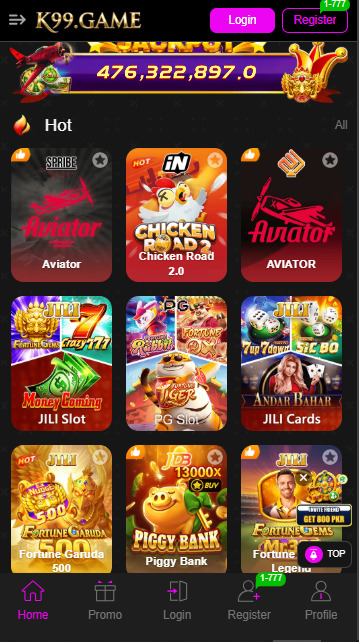
K99 Game is an Android k99 game that is distributed outside the Google Play Store. Users generally install it manually after downloading the k99 game file onto their device.
Like many Android applications, it includes a user interface designed for touch-screen devices and is intended to run on a range of Android phones and tablets. The exact features available may vary depending on the version of the application.
Before installing any k99 game, users should:
- Download only from a trusted source.
- Check that the file has not been modified.
- Ensure the app requests only permissions that are necessary.
- Keep Android updated with the latest security patches.
These steps help reduce the risk associated with installing software from outside official app stores.

Why Users Search for K99 Game
Several factors contribute to the app’s popularity in search results:
Easy Installation
Users can manually install the k99 game after downloading it, without relying on an app store.
Android Compatibility
The application is designed to work on many Android devices, although minimum version requirements may vary.
Lightweight Size
Smaller k99 game files generally download faster and require less storage space.
Regular Updates
Developers may release updated versions to improve compatibility, stability, or fix software issues.
Simple User Interface
Many Android users prefer applications with straightforward navigation and clearly labeled menus.

Main Features
Simple Navigation
The interface is designed to make it easier for users to move between different sections of the application.
Fast Performance
The application is intended to load quickly on supported Android devices.
Compact APK
A relatively small installation package can make downloading and installing faster.
Device Compatibility
Recent Android versions generally provide the best compatibility and security.
Account Management
Users can typically access account settings, update profile information, and manage login credentials within the application.
Software Updates
Keeping the application updated helps improve stability and security.
System Requirements
| Requirement | Recommended |
|---|---|
| Operating System | Android 7.0 or later |
| RAM | 2 GB or more |
| Storage | At least 150 MB free |
| Internet | Stable Wi-Fi or mobile data |
| Installation | k99 game file from a trusted source |
Safety Tips Before Installing
Before installing any k99 game:
- Verify the download source.
- Scan the k99 game with mobile security software if possible.
- Review the permissions requested by the app.
- Avoid modified or unofficial k99 game versions.
- Keep Android security updates enabled.
- Use a strong password if you create an account.
Following these steps can help protect your device and personal information.
How to Download the k99 game Safely
If you decide to install an k99 gameoutside the Google Play Store, take these precautions:
- Download only from a website you trust.
- Verify that the k99 game is the latest available version.
- Avoid websites that require unnecessary downloads or installers.
- Check the file size and version information before installing.
- Scan the k99 game with reputable mobile security software if possible.
Before You Install
Before opening the k99 game file, make sure your device is ready.
Check Available Storage
Ensure you have enough free space for both the installation and future updates.
Charge Your Device
Having at least 30% battery helps prevent interruptions during installation.
Update Android
Installing the latest Android security updates can improve compatibility and device protection.
Back Up Important Data
Although most installations do not affect personal files, having a backup is a good practice.
Play top-earning apps like B77 Game and explore more exciting opportunities at b99game.com.pk .
How to Install the k99 game
Android blocks unknown applications by default.
To install an k99 game:
- Locate the downloaded k99 game file.
- Tap the file.
- If prompted, allow installation from your chosen browser or file manager.
- Review any permissions the app requests.
- Complete the installation.
- Open the application after it finishes installing.
After installation, consider disabling the “Install unknown apps” permission again for better security.
Creating an Account
If the application offers user accounts, registration generally involves:
- Choosing a username
- Creating a strong password
- Providing any required contact information
- Accepting the application’s terms and conditions
Use a password that is unique and not reused on other websites.
Signing In
After creating an account:
- Open the application.
- Select Sign In or Log In.
- Enter your registered username or email (if applicable).
- Enter your password.
- Complete any verification step if required.
Avoid signing in on public or shared devices.
Keeping Your Account Secure
Good account security practices include:
- Use a unique password.
- Enable two-factor authentication if available.
- Do not share your login details.
- Be cautious of phishing messages asking for your password.
- Sign out when using someone else’s device.
Common Installation Problems
App Won’t Install
Possible causes:
- Incompatible Android version
- Corrupted APK file
- Insufficient storage
Possible solutions:
- Download the APK again.
- Free up storage space.
- Check that your device meets the app’s requirements.
Installation Blocked
Android may block installation from unknown sources.
Solution:
Allow installation only for the app (browser or file manager) you are using, then disable that permission again afterward if you no longer need it.
App Closes Unexpectedly
Possible causes include:
- An outdated app version
- Limited available memory
- Software compatibility issues
Try restarting the device, updating the app, or checking for Android system updates.
Login Problems
Incorrect Password
Check for typing errors and make sure Caps Lock is not affecting your input if using a connected keyboard.
Network Issues
A weak or unstable internet connection may prevent successful sign-in.
Verification Code Delays
If the app uses one-time verification codes, allow a few minutes for delivery before requesting another code.
Updating the App
Keeping the application updated can provide:
- Improved stability
- Bug fixes
- Better compatibility
- Performance improvements
- Security enhancements
Always verify that updates come from a trusted source.
Uninstalling the App
If you no longer need the application:
- Open Settings.
- Go to Apps.
- Select the app.
- Tap Uninstall.
- Confirm your choice.
If desired, delete the downloaded APK file afterward to free storage space.
Privacy and Permissions
Before using any Android application, review the permissions it requests. Apps should only ask for access that is necessary for their intended functionality.
Common Android permissions include:
| Permission | Purpose |
|---|---|
| Storage | Save or read app data |
| Notifications | Send updates and alerts |
| Internet | Connect to online services |
| Camera (if requested) | Scan QR codes or upload images |
| Photos/Media | Select images from your device |
If an app requests permissions that seem unrelated to its purpose, consider whether you are comfortable granting them.
Tips for Keeping Your Device Secure
Good security habits help protect both your device and your personal information.
- Download APK files only from trusted sources.
- Keep Android updated with the latest security patches.
- Use a strong, unique password for each account.
- Enable two-factor authentication if the app supports it.
- Install updates when they become available.
- Avoid installing modified or unofficial APK versions.
- Lock your device with a PIN, password, or biometric authentication.
- Back up important data regularly.
Troubleshooting Common Issues
App Runs Slowly
Try:
- Restarting your phone.
- Closing unused background apps.
- Freeing up storage space.
- Updating the app and Android.
Download Fails
Possible causes include:
- Unstable internet connection.
- Insufficient storage.
- Interrupted download.
Check your connection and available storage before trying again.
Update Problems
If an update fails:
- Restart the device.
- Verify that you downloaded the correct version.
- Ensure there is enough storage available.
- Remove the old version only if recommended by the developer and after backing up any important data.
Frequently Asked Questions
Is K99 Game available on Android?
Availability depends on the developer’s distribution method and your region. Check the official source for the latest information.
Is it safe to install k99 game files?
APK files can be safe when obtained from trusted sources. Downloading from unknown websites increases the risk of malware or altered software.
Why won’t the app install?
Common reasons include insufficient storage, an incompatible Android version, or a corrupted download.
Why can’t I log in?
Check your internet connection, verify your login details, and follow the app’s account recovery process if you’ve forgotten your password.
How do I update the app?
Use the update method recommended by the app’s developer, and verify that updates come from a trusted source.
Should I review app permissions?
Yes. Only grant permissions that are necessary for the app’s features.
Best Practices
Following these practices can improve both security and usability:
- Keep the app updated.
- Review permissions carefully.
- Use strong passwords.
- Protect your device with a screen lock.
- Keep regular backups.
- Avoid unofficial or modified versions.
- Use secure internet connections when signing in.
Conclusion
Before installing any k99 game, take time to verify the source, understand the permissions it requests, and ensure your Android device is up to date. These simple steps help reduce security risks and improve your overall experience.
Whether you’re evaluating K99 Game or any other Android APK, staying informed about installation, updates, privacy, and device security is one of the best ways to protect your data and keep your device running smoothly.
Download links
How to install K99 Game APK: Complete User Guide (2026) APK?
1. Tap the downloaded K99 Game APK: Complete User Guide (2026) APK file.
2. Touch install.
3. Follow the steps on the screen.
Related apps







Latest Apps
-
 555JC Game Download – Easy Guide for Android (2026)V1.2 555JC APK
-
 111 WG Game APK Download: New Version, Login & Play GuideV4.2
-
 JZ666 Game Apk (Safe Online PKR Money Earning App) 2026V1.2
-
 ZAV Game: Features, Rewards, JazzCash & Easypaisa GuideV1,0,1 ZAV Game
-
 kk5 win Game APK (Best Earning App) Download for AndroidV4.2 kk5 win Game APK
-